
← All Features
LIVE

VAU0 Driver App

The all-in-one mobile application built specifically for CDL drivers. Manage your hours of service, view load details, upload documents, navigate to your next stop, and stay connected with your carrier — all from a single app on your phone.

iOS & Android
Both Platforms
Offline
Works Without Signal
ELD
Integrated Logging
Free
For All Drivers
App Highlights
🚙
HOS Logging
FMCSA-compliant ELD
🗺
GPS Navigation
Truck-safe routing
📄
Documents
POD & BOL upload
💬
Messages
Direct carrier comms
Explore
★ Core Capabilities

Everything a Driver Needs

The VAU0 Driver App replaces a stack of separate tools with one unified experience. Every feature is designed around how drivers actually work — on the road, on tight schedules, and often with limited connectivity.

HOS Logging
Automatic hours-of-service tracking that complies with FMCSA regulations. The app connects to your ELD device via Bluetooth and records driving time, on-duty time, sleeper berth, and off-duty periods. Your 8-day log history is always accessible, and the app warns you before you approach HOS violations so you can plan rest stops accordingly.
🗺
GPS Navigation
Turn-by-turn navigation designed for commercial vehicles. The routing engine accounts for truck height and weight restrictions, low bridges, hazmat routes, and state-specific regulations. It integrates directly with your current load, so the destination is pre-loaded — just tap “Navigate” and go.
📦
Load Details
View complete information about your assigned load without calling dispatch. See pickup and delivery addresses, scheduled times, broker reference numbers, commodity type, weight, and any special instructions. Load details update in real time when changes are made by your dispatcher or carrier.
📷
Document Upload (POD/BOL)
Capture proof of delivery, bills of lading, lumper receipts, and scale tickets using your phone camera. The app automatically crops and enhances images for readability, tags them with the correct load number, and uploads them to the carrier’s TMS. No more lost paperwork or delayed invoicing.
🔧
DVIR Pre/Post Trip
Complete your Driver Vehicle Inspection Reports digitally. Walk through a guided checklist covering brakes, tires, lights, fluid levels, coupling devices, and more. Flag defects with photos and notes. Reports are timestamped, GPS-tagged, and immediately available to your carrier’s maintenance team for review and sign-off.
💬
Messages & Alerts
Two-way messaging with your dispatcher and carrier. Receive load assignments, schedule changes, weather alerts, and company announcements in one feed. Messages are tied to specific loads when relevant, so context is never lost. Push notifications ensure you never miss time-sensitive updates even when the app is in the background.
💰
Pay Stubs & Settlements
Access your weekly or per-load settlement statements directly in the app. See gross pay, deductions (fuel advances, insurance, equipment lease), and net pay. Historical settlement data is archived so you can review past pay periods anytime. No more waiting for paper checks or calling the office to ask about your pay.
Fuel & Expense Tracking
Log fuel purchases with amount, price per gallon, and location. Track other road expenses like tolls, scales, and parking fees. Receipts can be photographed and attached. For owner-operators, this data feeds directly into profit-per-load calculations and end-of-year tax reporting, making it easier to manage your business on the go.
📱 Screen by Screen

App Walkthrough

Here is what you will see when you open the VAU0 Driver App, screen by screen. Each view is designed for quick access while on the road.

🏠

Dashboard

The dashboard is your home screen. At the top, you see your current duty status (Driving, On-Duty, Sleeper Berth, or Off-Duty) displayed in a large, color-coded banner. Below that sits your remaining drive time for today and your 70-hour cycle remaining, shown as a progress bar so you can gauge at a glance how much time you have left.

The middle section shows your active load card — including pickup city, delivery city, and estimated arrival time. If you have no active load, it shows “No Load Assigned” with a prompt to check messages for new assignments.

At the bottom of the dashboard are quick-action buttons: Start Navigation, Upload Document, Complete DVIR, and View Messages. The unread message count appears as a badge on the Messages button.

📦

Active Load

The Active Load screen displays every detail about your current assignment. The header shows the load reference number and broker name. Below that, a route summary card displays the origin address with scheduled pickup date and time, and the destination address with the delivery appointment.

Commodity details include type of freight, total weight, number of pallets or pieces, and temperature requirements if applicable. Special instructions from the broker or shipper appear in a highlighted yellow box so they are impossible to miss.

Action buttons at the bottom let you mark arrival at pickup, confirm loading complete, mark arrival at delivery, and confirm delivery complete. Each status change is timestamped and GPS-tagged automatically.

HOS Clock

The HOS Clock screen shows your current 24-hour log graph. The familiar grid displays your duty status changes across the day, with color-coded bars for each status: green for driving, blue for on-duty not driving, dark gray for sleeper berth, and light gray for off-duty.

Above the graph, four countdown timers show your remaining time: 11-hour drive limit, 14-hour window, 30-minute break requirement, and 70-hour cycle. When any timer drops below 2 hours, it turns amber. Below 30 minutes, it turns red with a pulsing animation.

You can scroll left to view your logs from the previous 7 days. Each day shows total drive hours, total on-duty hours, and any violations or exceptions that were logged. Tapping a specific day opens the detailed log view with every status change, location, and odometer reading.

🗺

Navigation

The navigation screen provides a full-screen map with your truck’s current position and the planned route highlighted. The route is calculated using truck-specific parameters including vehicle height, weight, length, and number of axles. Low bridges, weight-restricted roads, and no-truck zones are excluded from the route automatically.

Turn-by-turn voice directions guide you through each maneuver. Upcoming turns are shown in a banner at the top of the screen with distance countdown. The estimated time of arrival updates dynamically based on current speed and traffic conditions.

Nearby points of interest are accessible via a side panel: truck stops, fuel stations (with current diesel prices when available), rest areas, weigh stations, and CAT scale locations. You can filter these by distance or type and add any location as a waypoint to your current route.

📄

Documents

The Documents screen lists all documents you have uploaded, organized by load. Each entry shows the document type (POD, BOL, lumper receipt, scale ticket, or other), the date captured, and the upload status (uploaded, pending, or failed). A green checkmark appears next to successfully uploaded documents.

Tapping the camera icon opens the document capture mode. The camera viewfinder includes edge detection that highlights the document boundaries. After capture, you can crop, rotate, and adjust brightness before selecting the document type and confirming upload. Documents queued while offline are marked as “Pending” and upload automatically when connectivity returns.

💬

Messages

The Messages screen shows all conversations with your carrier and dispatcher. Messages are threaded by load when they relate to a specific assignment, and a general channel handles everything else. Unread messages display a blue dot indicator. You can send text messages, share your current location, or attach photos directly from this screen.

System alerts also appear here, including load assignment notifications, ETA reminders, HOS warnings, and weather advisories for your route. Alerts are color-coded by priority: red for urgent, amber for important, and blue for informational.

Settings

Settings lets you configure your profile, vehicle information, ELD device pairing, and notification preferences. Your profile includes your CDL number, license state, endorsements, and medical card expiration date. Vehicle settings store your truck’s dimensions for navigation routing.

The ELD section shows your paired device name, connection status, firmware version, and diagnostics. You can initiate a new Bluetooth pairing, run a diagnostic test, or view the last data transfer log. Notification preferences let you toggle push notifications for messages, load assignments, HOS warnings, and system updates individually.

Mobile app interface showing HOS and load details
📡 ELD Integration

HOS on Your Phone

The VAU0 Driver App turns your smartphone into a fully compliant ELD display. Here is how the electronic logging device integration works in practice.

Bluetooth Connection to ELD Device
The ERETH ELD hardware unit plugs into your truck’s diagnostic port (9-pin or 6-pin J-Bus connector). Once installed, it broadcasts a Bluetooth signal that the app discovers during the pairing process. Pairing takes under 60 seconds. After initial setup, the app reconnects automatically every time you start the truck. The connection range is approximately 30 feet, so it stays paired even when your phone is in a mount, your pocket, or on the passenger seat.
Automatic Duty Status Changes
When the ELD detects the vehicle moving at 5 mph or faster, the app automatically switches your status to “Driving.” When the vehicle comes to a stop for more than 3 consecutive minutes at highway speed or 5 minutes otherwise, the app prompts you to confirm a status change. This prevents accidental logging errors while respecting that short stops at traffic lights should not trigger changes.
Manual Status Changes
Drivers can manually change their status with a single tap. The four standard FMCSA statuses are available: Driving, On-Duty Not Driving, Sleeper Berth, and Off-Duty. You can also select special statuses including Personal Conveyance and Yard Move when applicable. Each manual change requires a location annotation (auto-filled by GPS) and an optional note explaining the reason.
8-Day Log History
FMCSA requires drivers to maintain the current day plus the previous 7 days of logs. The VAU0 Driver App stores this data locally on your device and syncs it to the cloud. You can scroll through each day’s log graph, review total hours in each status, and see the odometer readings and locations for every status change. Logs are tamper-evident and include checksums that satisfy audit requirements.
Violation Warnings Before They Happen
The app continuously calculates your remaining available time under all applicable HOS rules: the 11-hour driving limit, the 14-hour on-duty window, the 30-minute break requirement, and your 60/70-hour cycle. When you are approaching any limit, you receive graduated warnings at the 2-hour, 1-hour, and 30-minute marks. This gives you time to find a safe stopping point before a violation occurs.
One-Tap FMCSA Data Transfer
During a roadside inspection, officers may request your electronic logs. The app includes a dedicated “Inspection Mode” button that generates a data transfer file in the FMCSA-approved format. You can send this file to the officer via web services (direct upload to FMCSA servers) or email. The transfer includes your driver identification, vehicle information, carrier details, and the full 8-day log history with all required annotations.
FMCSA Compliant: The ERETH ELD is registered on the FMCSA’s list of approved electronic logging devices. The VAU0 Driver App serves as the registered display and driver interface. Together, they meet all requirements of the ELD mandate (49 CFR Part 395).
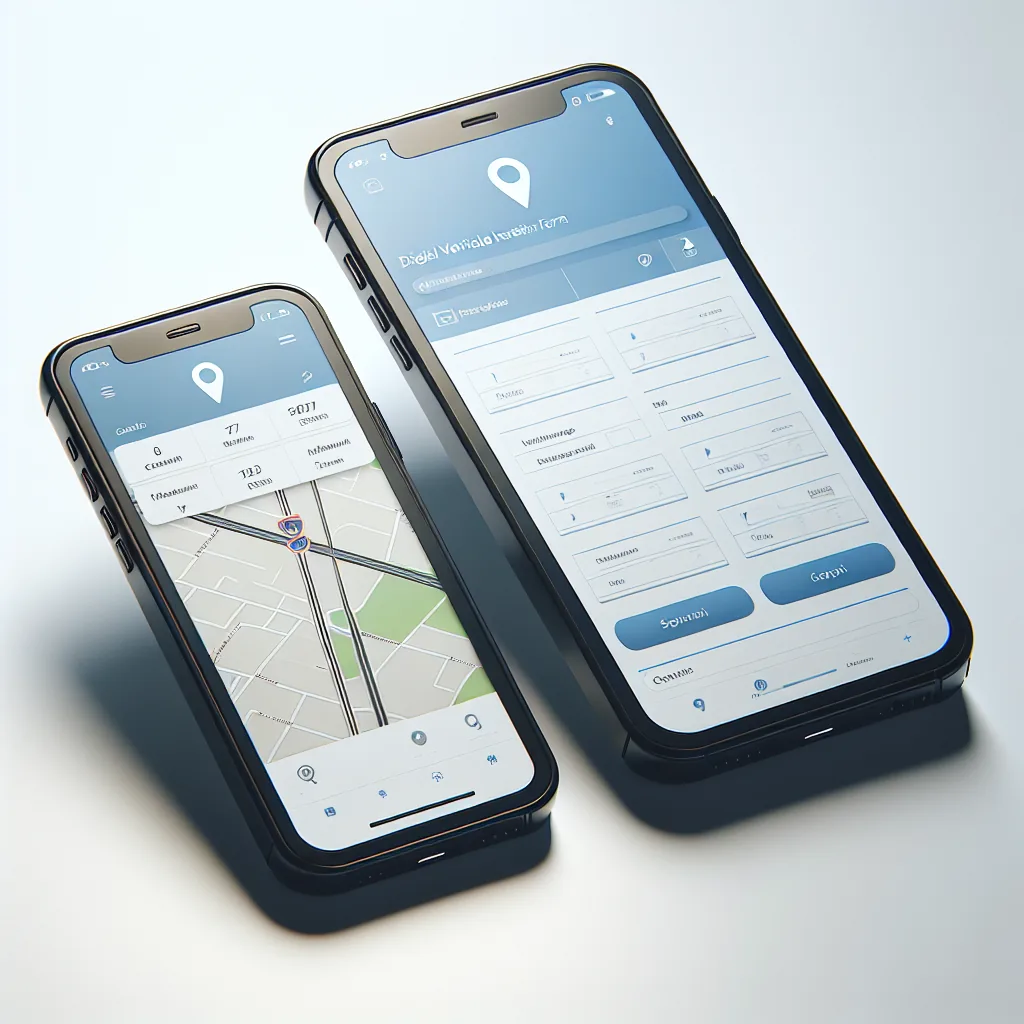
VAU0 Driver App portals on iPhone
📶 Connectivity

Offline Mode

Cell signal disappears in rural areas, mountain passes, and parts of the Midwest. The VAU0 Driver App keeps working regardless. Here is what happens when you lose connectivity.

📡
App Works Without Cell Signal
The app is designed to function fully offline. Your ELD connection is Bluetooth-based (not cellular), so HOS logging continues uninterrupted even in complete dead zones. All screens remain accessible. You can view your load details, check your log history, complete a DVIR, and capture documents. The app caches all critical data locally on your device so there is no dependency on a server connection for day-to-day operations.
💾
Logs Cached Locally, Synced When Connected
Every HOS log entry, duty status change, and vehicle event is stored in a local database on your phone. When cellular or Wi-Fi connectivity returns, the app synchronizes all cached data with the VAU0 cloud servers automatically in the background. The sync process is incremental — only new or changed records are transmitted — so it completes quickly even on slow connections. You will see a small sync indicator in the status bar when data is being uploaded.
📍
GPS Coordinates Stored Offline
Your phone’s GPS receiver works independently of cellular service. The app continues to record your position at regular intervals (every mile or every status change, whichever comes first) even without a data connection. These coordinates are stored with each log entry and uploaded during the next sync. This means your carrier’s live tracking map will show your historical route once you regain connectivity, filling in any gaps in real time.
📤
Documents Queue for Upload
If you capture a POD or BOL photo while offline, the document is saved locally and added to an upload queue. The Documents screen shows these items with a “Pending Upload” badge. When you reach an area with connectivity (or connect to truck stop Wi-Fi), the queue processes automatically. Documents are uploaded in the order they were captured, and you receive a confirmation notification for each successful upload. Failed uploads retry automatically up to five times.
Tip: For the best offline experience, open the app and let it sync fully before heading into areas with poor coverage. This ensures your load details, messages, and navigation maps are all cached on your device.
📷 Document Management

Document Upload Workflow

Getting proof of delivery and bills of lading from the driver’s phone to the carrier’s TMS used to take days. Now it takes seconds.

1
Take Photo
Open the document capture screen and point your camera at the POD, BOL, or receipt. The app uses edge detection to identify the document boundaries on the live viewfinder. When the document is fully in frame, the border turns green. Tap the capture button. The app supports multiple pages — you can photograph a two-page BOL as a single document by tapping “Add Page” between captures.
2
Crop & Enhance
After capture, the app displays the image with adjustable crop handles on each corner. Drag the corners to trim any extra background. The auto-enhance feature adjusts brightness, contrast, and sharpness to maximize text readability. You can also rotate the image 90 degrees if it was captured sideways. A “Retake” button lets you start over if the image is blurry or the document was partially obscured.
3
Tag with Load Number
The app automatically associates the document with your currently active load. If you are uploading a document for a different load (for example, a late POD from yesterday), you can select from a list of your recent loads. You also select the document type from a dropdown: Proof of Delivery, Bill of Lading, Lumper Receipt, Scale Ticket, Rate Confirmation, or Other. Adding the correct tags ensures your carrier’s billing team can match documents to invoices instantly.
4
Upload to TMS
Tap “Upload” and the document is compressed and transmitted to the VAU0 cloud. From there, it is automatically attached to the correct load record in the carrier’s TMS. The upload uses an optimized compression algorithm that keeps file sizes small without sacrificing readability. A progress bar shows upload status, and a green checkmark confirms completion.
5
Carrier Gets It Instantly
The moment the document arrives in the TMS, the carrier’s back office receives a notification. They can view the document, confirm receipt, and begin the invoicing process immediately. For brokers that require POD submission, the carrier can forward the document directly from the TMS. This eliminates the typical 3-to-5-day delay between delivery and invoice submission that occurs when drivers mail or hand-deliver paper documents.
📈 Head-to-Head

Driver App vs Competitor Apps

See how the VAU0 Driver App compares with other popular driver-facing apps in the industry.

Feature VAU0 Driver App Motive KeepTruckin Samsara
ELD Logging Full FMCSA
Load Details in App Full details Limited Limited Limited
Document Upload (POD/BOL) Auto-tagged
Offline Mode Full offline Partial Partial Partial
Pay Stubs & Settlements In-app
Two-Way Messages Load-linked
Truck-Safe Navigation Built-in Separate Separate Separate
DVIR with Photos Guided
Fuel & Expense Tracking
Free for Drivers Always free Carrier pays Carrier pays Carrier pays
Key difference: Most competitor apps focus solely on ELD compliance and leave drivers using separate apps for navigation, document management, and communication. The VAU0 Driver App combines all of these into a single interface, reducing app-switching and keeping drivers focused on the road.
💼 Owner-Operator Tools

For Owner-Operators

Owner-operators wear two hats: driver and business owner. The VAU0 Driver App includes features specifically designed for independent operators who need to track profitability, not just compliance.

💰
Load Details with Rate Visibility
Unlike company driver accounts, owner-operator profiles display the full rate information for each load. You can see the line-haul rate, fuel surcharge, accessorial charges, and total revenue before accepting a load. This transparency helps you evaluate whether a load is worth your time and miles. Rate-per-mile calculations are displayed automatically so you can compare loads at a glance.
Expense Tracking
Log every expense category that matters to your bottom line: fuel, tolls, scales, parking, maintenance, lumper fees, and miscellaneous costs. Each expense can be tagged to a specific load or marked as a general operating expense. Receipt photos are attached automatically. At the end of each week or month, you can export a detailed expense report that simplifies tax preparation and helps identify where your money is going.
📈
Profit Per Load
The app calculates your net profit for each completed load by subtracting all tagged expenses from the total revenue. You can see profit per mile, profit per hour, and total profit at a glance. Over time, this data reveals which lanes, brokers, and freight types are most profitable for your operation. Historical profit data is stored so you can compare performance across weeks, months, and quarters.
📋
Settlement History
If you are leased to a carrier, your weekly or bi-weekly settlements are available in the app as soon as they are processed. Each settlement shows the loads included, gross revenue, carrier deductions (dispatch fee, insurance, ELD lease, etc.), fuel advances applied, and your net payout. You can drill into any line item for details. The full settlement history is searchable and exportable, giving you a complete financial record of your business relationship with the carrier.
Coming soon: IFTA fuel tax reporting that automatically calculates miles driven and fuel purchased per state, generating a quarterly IFTA summary you can submit directly or hand to your accountant.
🔄 Setup Guide

Getting the App

From download to your first mile logged, setup takes about 10 minutes. Here is the process step by step.

1
Get Invite from Your Carrier
Your carrier creates your driver profile in the VAU0 portal and sends you an invitation via email or SMS. The invitation includes your login credentials and a direct link to the app download. If you are an owner-operator setting up your own account, you can register directly through the VAU0 portal and invite yourself.
2
Download from App Store or Google Play
Search for “VAU0 Driver” on the Apple App Store or Google Play Store. The app is free to download and requires iOS 15 or later, or Android 10 or later. The download size is approximately 85 MB. Once installed, open the app and you will see the login screen.
3
Log In with Your Credentials
Enter the username and password provided in your carrier’s invitation. On first login, the app will ask you to grant permissions for location (required for ELD compliance), camera (for document capture), Bluetooth (for ELD device pairing), and notifications (for messages and alerts). After granting permissions, you will see your dashboard with your carrier’s name and your driver profile information.
4
Pair ELD Device via Bluetooth
Navigate to Settings → ELD Device → Pair New Device. Make sure your truck’s engine is running (the ELD device draws power from the diagnostic port). The app will scan for nearby ERETH ELD devices and display them in a list. Tap your device to pair. A confirmation code will appear on both the app and the ELD device’s indicator light pattern. Confirm the match and pairing is complete. The status will change to “Connected” with a green indicator.
5
Start Driving — HOS Logs Automatically
With the ELD paired and your profile set up, you are ready to go. When you start the truck and begin moving, the app detects motion through the ELD and automatically begins recording your driving time. Your duty status, location, odometer reading, and engine hours are captured continuously. There is nothing else to configure. Just drive, and the app handles the rest.
10 min
Setup Time
85 MB
Download Size
iOS & Android
Both Platforms
$0
Cost to Driver
VAU0 Driver App on iOS — ELD, DVIR, dispatch
🔗 Related Features

Works With

The VAU0 Driver App is part of a larger platform. These related features integrate seamlessly with the app to create a complete transportation management experience.

VAU0 Driver App — connected trucking

Download the VAU0 Driver App

Available on iOS and Android. Free for all drivers. Get your invite from your carrier or sign up as an owner-operator to get started today.